How to Unarchive Emails in Gmail, Outlook & Apple Mail
Can't find an important message? Learn how to unarchive emails in Gmail, Outlook, and Apple Mail with our step-by-step guide. Find any archived email fast.

You open your inbox to pull up one important message, and it's gone. Not in the inbox. Not where you expected. You're already wondering whether you deleted it, whether the app failed to sync, or whether you're somehow in the wrong account.
Most of the time, the email isn't gone. It's archived, moved by a swipe, a keyboard shortcut, a rule, or a quick clean-up session you barely remember. That's fixable.
How to unarchive emails depends on the mail system you're using, but the fastest route is usually the same. Search first. Confirm which account you're in. Then check the platform's archive location, which might be All Mail in Gmail, an Archive folder in Outlook, or an account-specific archive location inside Apple Mail.
Table of Contents
- Your Missing Email Is Probably Not Gone Forever
- Find Any Archived Email Fast with Smart Search
- How to Unarchive Emails in Gmail Web and Mobile
- Retrieving Archived Mail in Outlook Web Desktop and Mobile
- Restoring Archived Messages in Apple Mail
- Troubleshooting When You Still Cannot Find Your Email
- Frequently Asked Questions About Unarchiving Emails
Your Missing Email Is Probably Not Gone Forever
You open your inbox, search the subject line, and the message is nowhere. In support, that usually means one of a few things. The email was archived, moved by a rule, hidden in another account, or never synced to the device you are checking.
Archiving only removes a message from the inbox view. It does not remove it from the account. That is why the right first move is not random folder browsing or checking Trash out of habit. It is confirming where you are signed in, then searching the full mailbox.
That distinction saves time. I have seen plenty of users spend twenty minutes hunting through Deleted Items, only to find the email was sitting in Archive or All Mail the whole time.
The other point that causes confusion is the word "unarchive." There is no single unarchive button that works the same way everywhere. Gmail, Outlook, and Apple Mail store and show archived mail differently, so the recovery step depends on the app and the account behind it.
Treat this as a location problem, not a data-loss problem. If the email was archived, it is usually still there. The job is to find the right mailbox, search the whole account, and move the message back to the inbox only after you know where it lives.
Find Any Archived Email Fast with Smart Search
Clicking folder after folder is the slowest way to solve this. Search is faster, and in messy mailboxes it's often the only sane option.
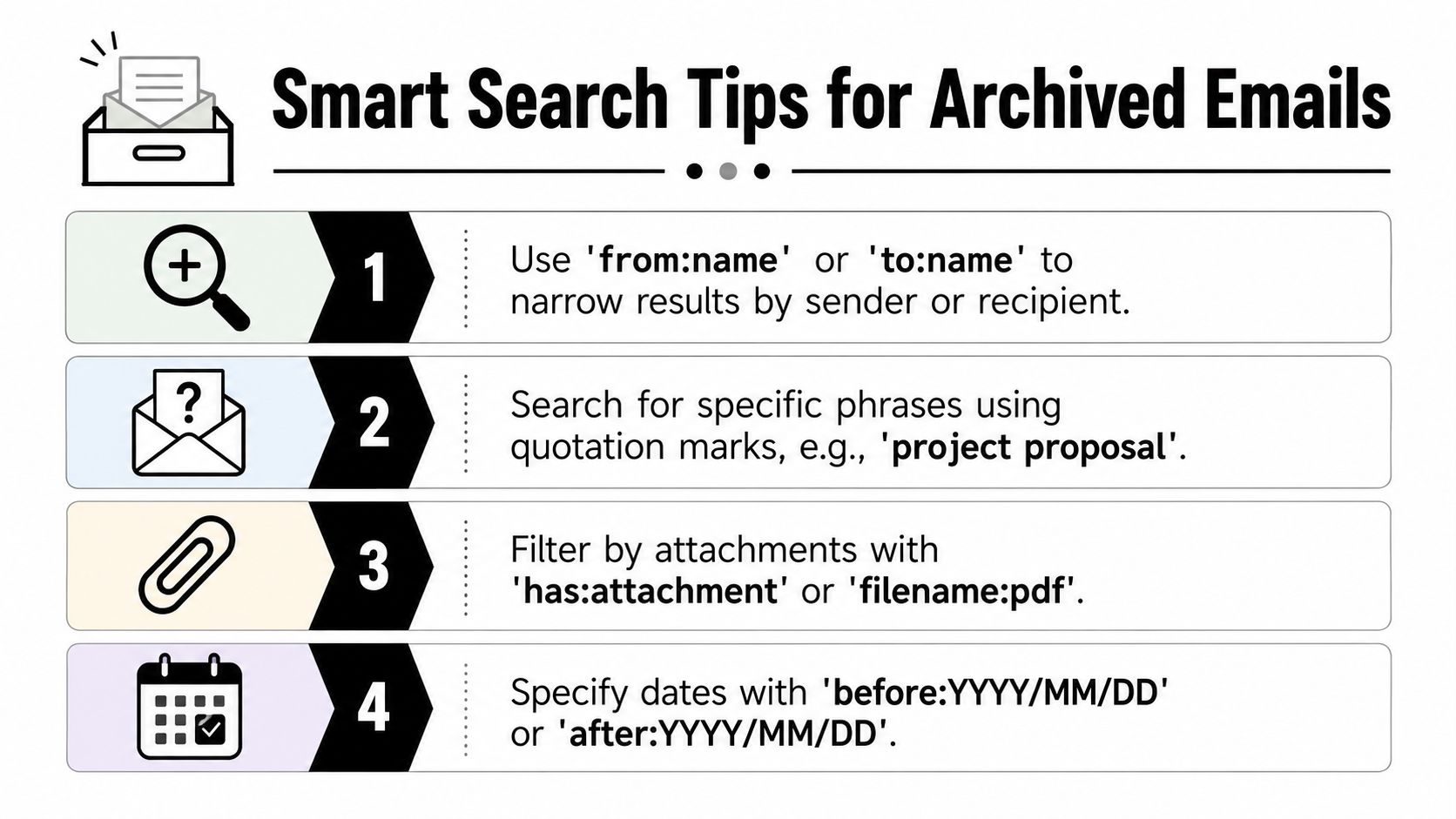
Start with sender subject and date clues
If you remember even one solid detail, use it. Don't search for a vague topic if you can search for a person, phrase, or attachment.
Try these first:
- Sender or recipient with queries like
from:name@company.comorto:name@company.com - Exact phrases in quotation marks, such as
"signed contract"or"payment received" - Attachment clues with
has:attachmentorfilename:pdf - Time limits with
before:YYYY/MM/DDorafter:YYYY/MM/DD
These work especially well when the email was archived months ago and the inbox is no help.
Use filters before browsing folders
Search the whole mailbox, not just the inbox. In Outlook, that means expanding the search scope so you include archive locations. In Gmail, it means using the top search bar rather than manually opening labels one by one.
A simple workflow works well:
- Search by sender.
- Add a phrase from the subject line.
- Add an attachment or date filter if needed.
- Open the result and move it back to the inbox only once you're sure it's the right thread.
Search solves two problems at once. It finds the message, and it tells you where the message lives now.
If search returns nothing, that's useful too. It usually points to one of the actual problems people skip over, such as the wrong account, a sync delay, or a message that was deleted rather than archived.
How to Unarchive Emails in Gmail Web and Mobile
Gmail confuses people because it doesn't behave like a traditional folder-based mail system.
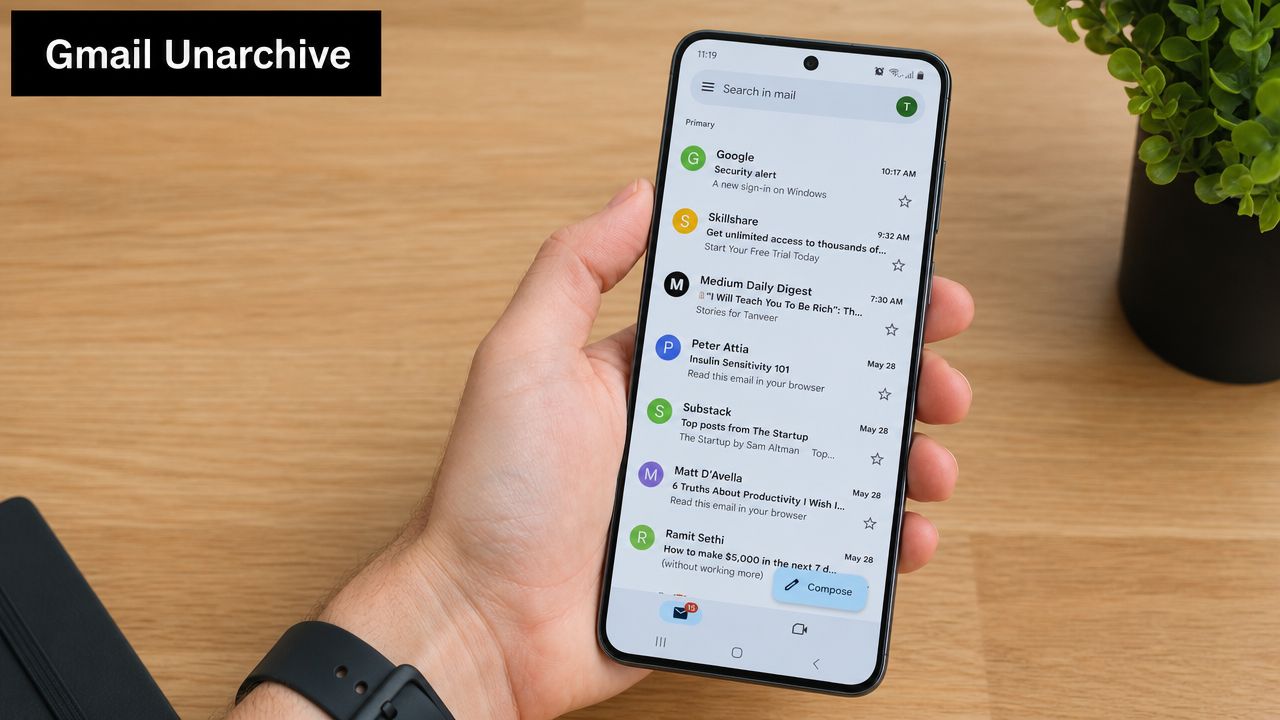
What trips people up in Gmail
Gmail has no separate Archive folder. Archived messages stay in All Mail, and archiving removes the Inbox label rather than moving the message into a standalone archive area. To restore it, you open All Mail and choose Move to Inbox, as explained in this guide on how Gmail archive retrieval works.
That's why users think messages vanished. They expect a visible Archive folder, but Gmail's structure is label-based.
If you want a second walkthrough for bulk clean-up or mobile steps, this guide on how to efficiently manage Gmail archives is a useful companion.
Move archived Gmail messages back to Inbox
On Gmail web:
- Open Gmail.
- In the left sidebar, click More if needed.
- Open All Mail.
- Find the message.
- Select it and click Move to Inbox.
On the Gmail mobile app:
- Open the app.
- Tap the menu icon.
- Open All Mail.
- Open the message.
- Tap the menu options and choose Move to Inbox.
Search is often faster than opening All Mail manually. If you know the sender, type that first. Then open the message and move it back.
For teams that handle large volumes of mail, it also helps to think beyond the one-off recovery. If your inbox habits are chaotic, structured automations can reduce accidental archiving and misfiling over time. This overview of business automation software is a practical place to start if you're trying to make email handling less manual.
Here's a quick visual if you want to see the Gmail steps in action:
If you can't see All Mail in Gmail, expand the sidebar first. It's often hidden under More, not missing.
Retrieving Archived Mail in Outlook Web Desktop and Mobile
Outlook usually gives you a visible place to check first, but users still get tripped up because Microsoft uses the word archive for more than one thing. The email may be sitting in the standard Archive folder, in an Online Archive mailbox added by work IT, or inside an older local archive file on one computer only. If you skip that distinction, you can waste time searching the wrong place.
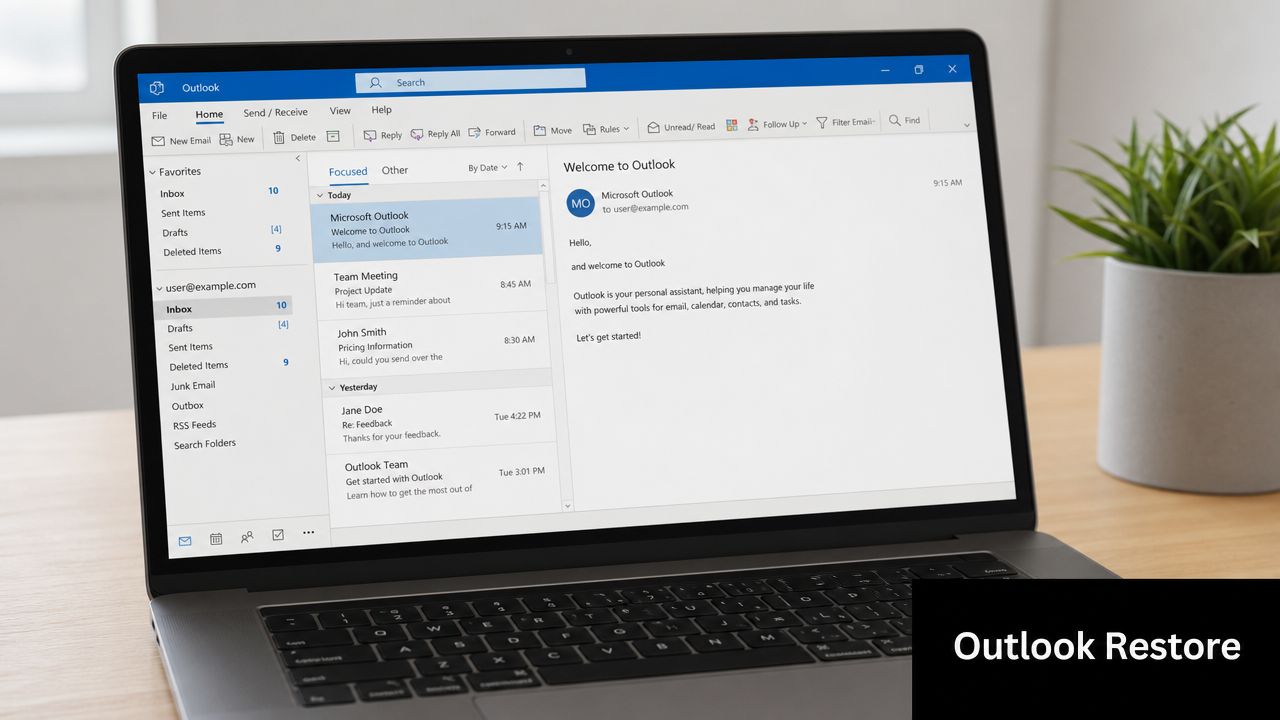
The normal Archive folder in Outlook
For Outlook on the web, New Outlook, and many mobile app setups, archived mail is stored in the Archive folder attached to your mailbox.
Open Archive, find the message, then use Move to and send it back to Inbox or the folder you want. On desktop, dragging it back is often faster.
If you do not see the message there, do not assume it was deleted. In Outlook environments, the bigger problem is often that you are searching the wrong mailbox or the wrong archive type.
When Outlook uses Online Archive or a PST file
Work and school accounts are where confusion starts. Some organisations enable Online Archive, which appears as a separate mailbox tree in Outlook. Older desktop setups may also use a local PST archive file stored on the PC that created it. If you switched computers, rebuilt Outlook, or signed into a different profile, that local archive may not appear until the file is opened manually.
Here is the quick triage I use:
| Outlook scenario | Where to look | What to do |
|---|---|---|
| Standard archive | Archive folder in mailbox | Move the message back to Inbox |
| Online Archive enabled | Separate Online Archive mailbox tree | Search there, then move the message |
| Older desktop archive | Local PST file | Open the data file, locate the mail, then move or copy it |
A few checks save a lot of time:
- Look for both Archive and Online Archive. They are not the same place.
- Change search scope from Current Folder to All Mailboxes or the full account. Current Folder is a common reason messages appear to be missing.
- Confirm the account at the top of Outlook. Users with multiple Microsoft 365 accounts often search the wrong mailbox.
- Ask whether the message was archived on an old computer. That points straight to a PST file issue.
- On mobile, pull to refresh before assuming the folder is empty. Sync delays are common, especially after account password changes or profile resets.
If Outlook search says a message exists but clicking it does nothing, treat that as an Outlook profile, sync, or data-file problem first. The email may still be there. Outlook just is not reading the archive location correctly.
One practical rule helps here. If you are on Outlook mobile or Outlook on the web and you cannot find a local archive at all, that usually means the missing email is not in a PST. Those local archive files are a desktop Outlook issue.
Restoring Archived Messages in Apple Mail
Apple Mail is a mail client, not a single mail system. That's the part people miss. The archive behaviour you see in Apple Mail depends on the account connected underneath it.
Apple Mail depends on the account underneath
If the account is iCloud, you'll usually see a dedicated Archive mailbox. If the account is Outlook, you'll typically be dealing with Outlook's Archive folder structure. If the account is Gmail, the Archive button in Apple Mail usually maps to Gmail's archive behaviour, which means the message may sit under All Mail rather than a traditional Archive folder.
That's why two people using the same Mail app can get different results.
Don't troubleshoot Apple Mail as if it stores mail independently. First identify the account type, then look for the archive location that account uses.
How to move the message back
On a Mac:
- Open Mail.
- In the sidebar, expand the correct account.
- Open Archive, All Mail, or the archive-related mailbox shown for that account.
- Select the email.
- Use Move To or drag it back to Inbox.
On iPhone or iPad:
- Tap Mailboxes
- Open the relevant account section
- Find Archive or All Mail
- Open the message
- Use Move to return it to the inbox
If you can't find the archive location inside Apple Mail, stop guessing and check the account type first. Gmail behaviour inside Apple Mail is the most common reason people think the app is broken when it isn't.
Troubleshooting When You Still Cannot Find Your Email
You search for the message, open Archive or All Mail, and still come up empty. At that point, the issue is usually account mix-ups, sync problems, filters, or deletion. Not the archive button itself.
Google's help discussions show the same pattern again and again. People assume a message was archived, but later find they were signed into the wrong mailbox, looking at a stale mobile view, or chasing a message that was deleted instead. That confusion comes through clearly in this Google help thread about missing archived email confusion.
Check the likely failure points first
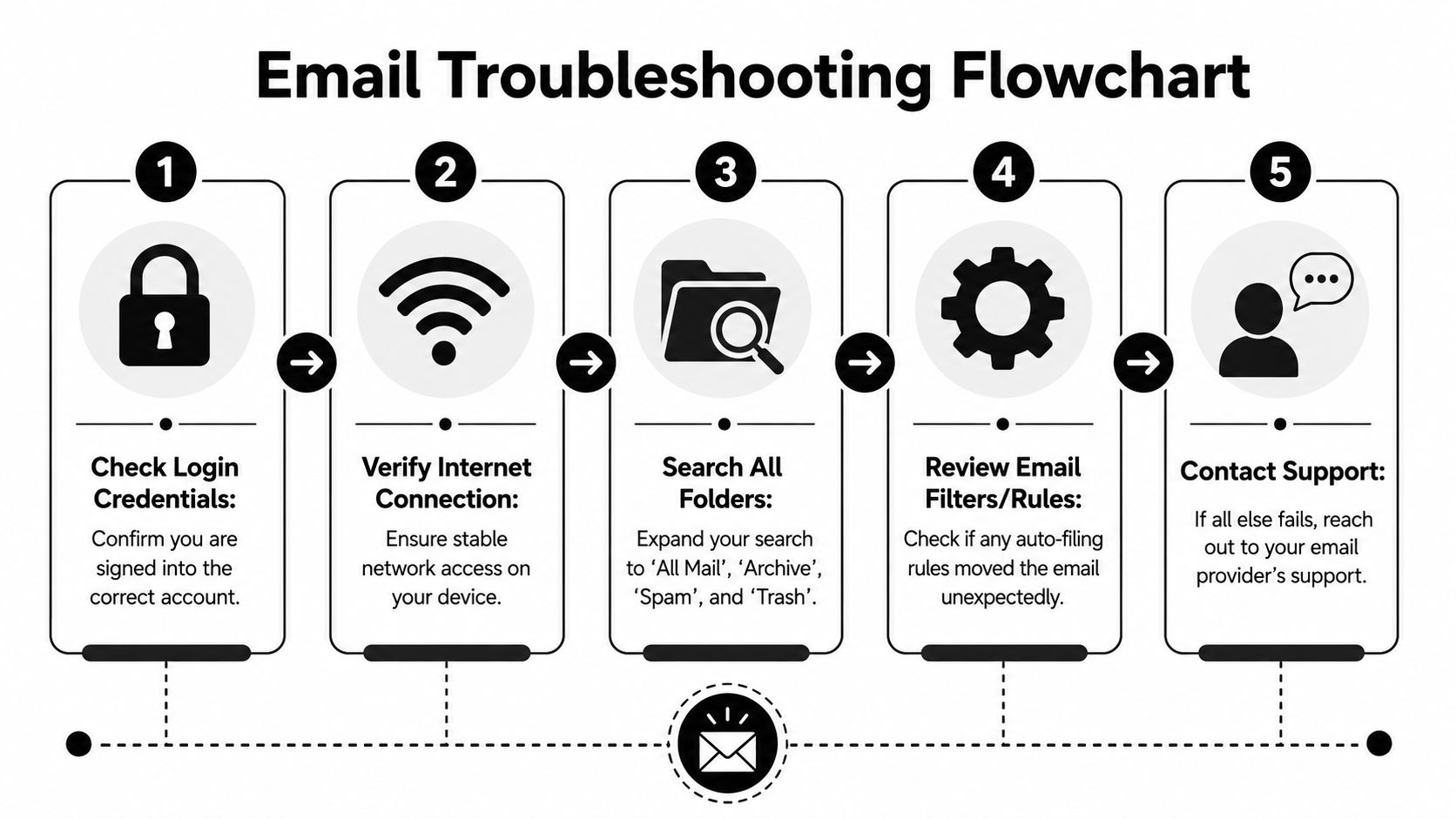
Work through these in order. It saves time.
- Confirm the account first: Users switch between personal, work, school, and shared inboxes constantly. Check the full email address, not just the profile photo.
- Test on another device or the web: If the message appears on webmail but not on your phone, you are dealing with sync, not search.
- Refresh the mailbox manually: Pull to refresh on mobile, restart the app, or reload the browser tab.
- Widen the search scope: Search all folders or all mailboxes. Folder-limited search is a common reason messages appear to vanish.
- Review rules, filters, and focused inbox settings: Auto-filing can move a message before you ever see it in the inbox.
A lot of missing-email cases stop here.
Check whether the message was moved somewhere else
Archived mail is only one possibility. Also check Trash, Deleted Items, Spam, Junk, and any custom folders created by rules or cleanup tools.
If this is a work account, ask one more question. Are you looking in the mailbox that received it? Shared mailboxes, delegated inboxes, and aliases trip people up all the time.
Use a strict troubleshooting order
When I handle this for users, I do it in the same sequence every time:
- Search broadly by sender, subject keyword, and date range.
- Confirm the correct account.
- Check archive-related folders or All Mail.
- Check Trash, Deleted Items, Spam, and rules-based folders.
- Test another device or webmail to rule out sync problems.
That order matters. If you start clicking around folders at random, you waste time and usually miss the actual cause.
If search is still unreliable
Some mail apps are poor at indexing large mailboxes, especially on older phones or heavily used desktop clients. In that case, a connected search tool can help surface messages that native search misses. Zenfox.ai is one option for indexing email and related work data, and if you regularly deal with messy inbound content, this guide to parsing email content before it creates search problems is useful.
When someone says, “I archived it and now it's gone,” I verify account, search scope, sync, and deletion status in that order. Guessing is what makes a five-minute fix turn into a half-hour hunt.
Frequently Asked Questions About Unarchiving Emails
A few issues come up over and over, even after you know the basic steps.
Can I unarchive more than one email at once
Usually, yes. Gmail and Outlook both let you select multiple messages and move them together. That's useful after an over-aggressive clean-up session or a bad swipe habit on mobile.
The only caution is accuracy. Bulk restore is fast, but it's also how users refill the inbox with old noise they didn't need.
Will unarchiving affect the sender or the thread
No. Moving a message out of archive and back to the inbox doesn't notify the sender. It doesn't resend anything. It only changes where the message appears in your mailbox.
Replies continue in the same thread. Attachments stay attached. You're changing location, not altering message content.
How do I stop accidental archiving in future
This is usually a settings problem, not a discipline problem.
Check these areas:
- Swipe actions on mobile: Archive is often assigned to a left or right swipe by default.
- Mailbox rules or filters: Auto-filing can send mail out of the inbox without you noticing.
- Keyboard shortcuts: In web and desktop clients, one stray key press can move a message.
If your work depends on reliable inbox handling, it helps to automate classification and follow-up intentionally rather than relying on ad hoc clean-up. These examples of email automation workflows show the difference between controlled automation and accidental filing.
A final rule keeps people out of trouble: archive only when you're done with the message for now, not when you merely want it out of sight. If you still need to act on it, snooze it, flag it, or move it to a task folder instead.
If email keeps turning into a hunt across inboxes, apps, and devices, Zenfox.ai is one way to make retrieval and follow-up more structured. It connects with your tools, indexes email alongside other work data, and supports automation so important messages don't keep disappearing into manual folder habits.