
Master How to Convert a Email to Pdf: 2026 Guide
Discover how to convert a email to pdf in 2026. Get a complete guide for Gmail, Outlook, mobile, and Zenfox.ai, covering attachments & multiple emails.
You're usually trying to solve this under pressure.
A client has approved a change by email. HR needs a record of a decision. Finance wants backup for an invoice trail. In that moment, the question sounds simple: how do you convert an email to PDF quickly and keep moving? The fast answer is usually print to PDF. The better answer depends on whether you need a readable copy, a shareable file, or a record you can defend later.
That distinction matters. A PDF made in ten seconds can be fine for forwarding to a colleague, but weak for audits, disputes, or structured record-keeping. The right method changes based on what you need to preserve: message body, headers, thread context, attachments, and the way the email renders outside your inbox.
Table of Contents
- Why Simply Printing an Email Isn't Enough
- The Universal Method Print to PDF on Desktop Clients
- Converting Emails on Your Mobile Phone or Tablet
- Advanced Conversions That Preserve Attachments and Metadata
- Automating Email to PDF Exports for Your Workflow
- Troubleshooting Common PDF Conversion Problems
Why Simply Printing an Email Isn't Enough
The most common mistake is treating an email PDF like a screenshot with a nicer file extension. That works if all you need is something readable. It doesn't work as well if someone later asks who sent it, when it arrived, what attachments came with it, or whether the thread shown in the PDF reflects the original conversation.
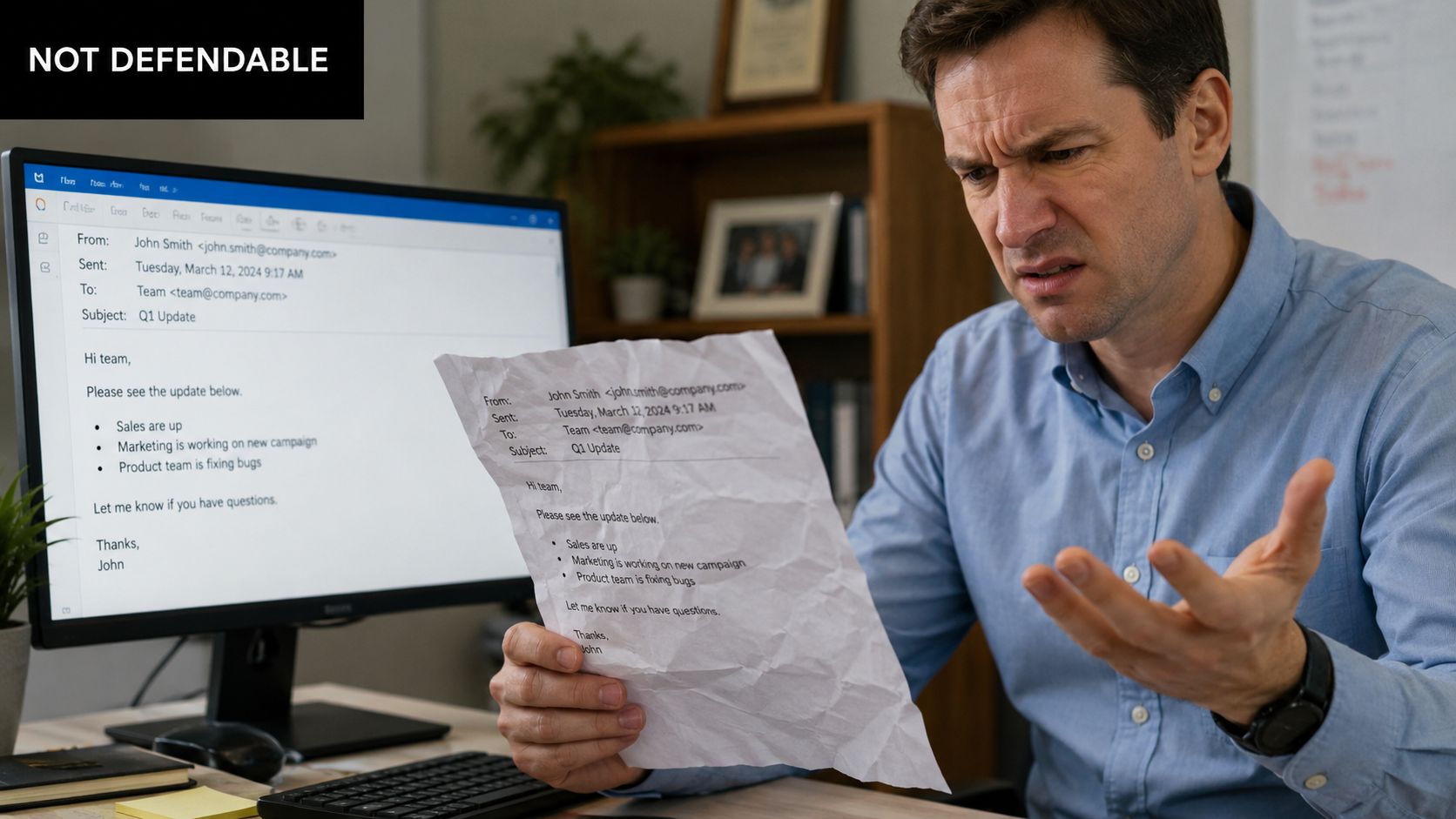
A readable copy isn't the same as a reliable record
In the UK, record-keeping guidance from The National Archives emphasises preserving content, context, and integrity, not just creating a printable version, which is why so many basic email-to-PDF guides fall short for evidence and compliance use cases, as noted in this overview of record preservation gaps in email conversion guidance.
That's the core issue in business settings. A project manager may need the approval email and the attached revised scope. A compliance lead may need the visible message plus the dates, routing details, and surrounding thread. A printed PDF often captures only the part of the message that happened to render nicely on screen.
If your team later wants to search, classify, and retrieve those records properly, it helps to think beyond saving files and towards structured handling such as document indexing for searchable archives.
Practical rule: If the email might matter later in a dispute, audit, handoff, or formal review, don't assume print to PDF is enough on its own.
What usually gets lost
Basic print workflows tend to flatten the message into a visual page. That can strip out useful detail or leave it inconsistent across devices and clients.
Common weak points include:
- Thread context: Earlier replies may collapse, trim, or display differently from the live mailbox view.
- Headers: Sender, recipient, CC, and time details may appear in a simplified layout rather than a full record.
- Attachments: The PDF may show attachment names, but not the files themselves.
- Layout fidelity: Buttons, banners, logos, quoted replies, and mobile-responsive sections can shift unexpectedly.
For everyday sharing, that may be acceptable. For procurement, HR, client disputes, or disclosure work, it often isn't.
The Universal Method Print to PDF on Desktop Clients
If you just need a clean PDF of one message, desktop print to PDF is still the fastest route.
Outlook on Windows
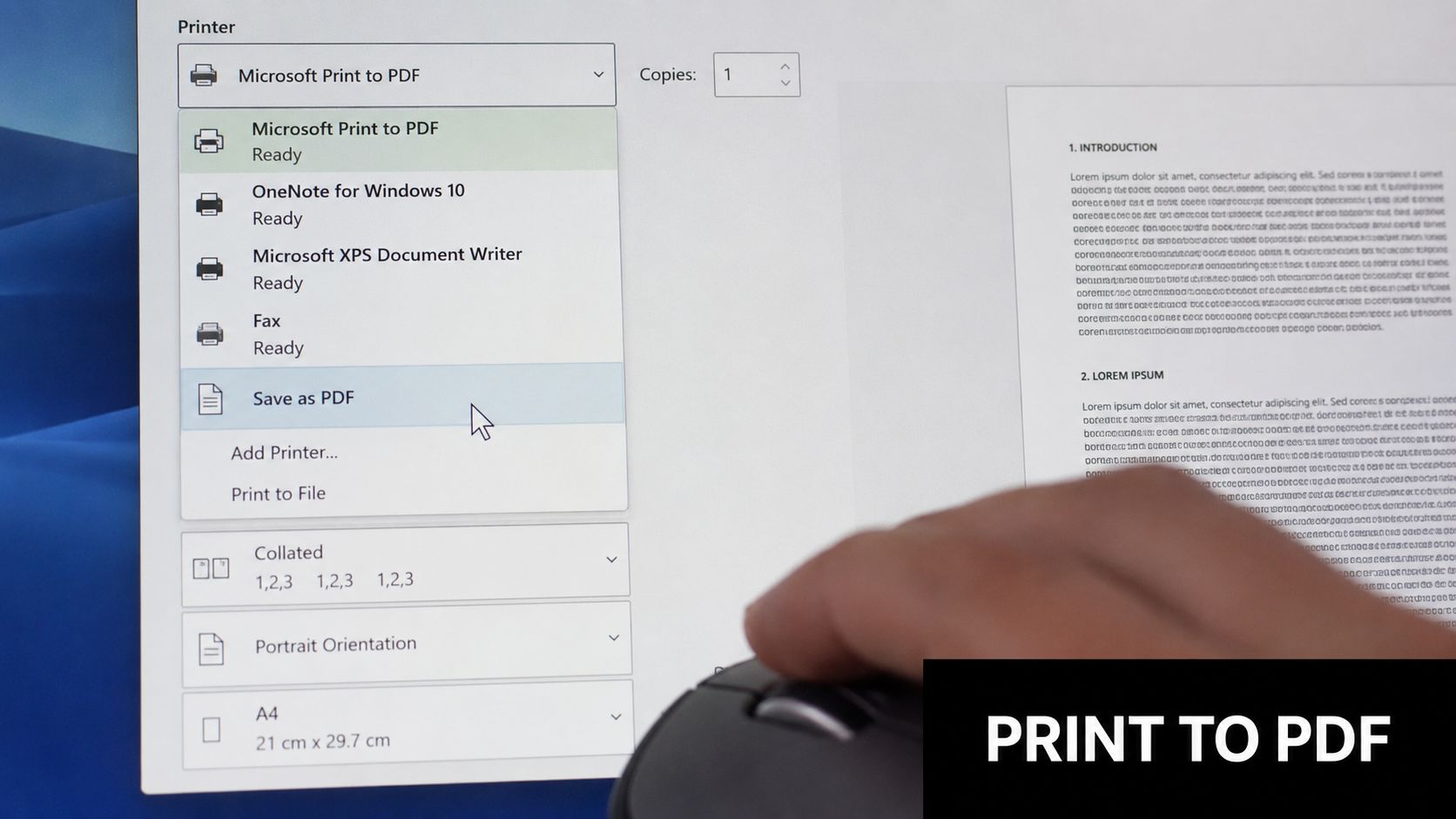
For many people in the UK, this is the default method because Microsoft documents it directly. Outlook's guidance says to open the message, choose More actions > Print, select Microsoft Print to PDF, and save the file. Microsoft also notes that Outlook on the web and Outlook.com offer Save as for messages in the same support guidance on saving Outlook messages as EML, PDF, or draft.
Use it like this:
- Open the email in its own window.
- Go to More actions and choose Print.
- In the printer list, select Microsoft Print to PDF.
- Check the preview before saving.
- Name the file clearly, then save it to the right folder.
This works well when speed matters more than archival detail.
Gmail and Outlook on the web
Webmail usually relies on the browser print path rather than an app-specific export. In Gmail or Outlook on the web, open the email, hit Print, and change the destination to your system's PDF option.
A few habits make this easier:
- Open the message fully: Don't print from the inbox preview pane if you can avoid it.
- Expand hidden content: Show trimmed replies before printing.
- Use preview seriously: Webmail can reflow content in print view.
Here's a walkthrough if you want to see the print flow in action:
When this method works best
Print to PDF is best when the job is simple and immediate.
| Use case | Good fit for print to PDF | Poor fit for print to PDF |
|---|---|---|
| One client email | Yes | |
| Quick sharing with a colleague | Yes | |
| Formal record with attachments | Yes | |
| Long thread with multiple replies | Sometimes | Often |
| Repeated export of many emails | Yes |
A fast copy is useful. A faithful record is a different standard.
If you're searching for how to convert an email to PDF because you need one message saved in under a minute, start here. If the email is part of a process, this method becomes a stopgap.
Converting Emails on Your Mobile Phone or Tablet
Mobile conversion is mostly about convenience. You're in a taxi, outside a meeting room, or on site with a client, and you need a PDF before you get back to your laptop.
That's doable, but mobile tools usually give you less control over layout, pagination, and attached files.
iPhone and iPad
On iPhone or iPad, the path usually runs through the Share or Print options in the mail app.
A practical approach:
- Open the email in Apple Mail, Gmail, or Outlook.
- Tap the Share or menu icon.
- Choose Print if there isn't a direct PDF save option.
- In the print preview flow, use the system share tools to save or send the output as a PDF.
- Save it to Files, email it onward, or upload it where it needs to go.
The benefit is speed. The trade-off is that you often won't get much control over what part of the thread is shown or how the final pages break.
Android phones and tablets
Android usually routes this through the system print menu.
The general process is:
- Open the email in Gmail or Outlook.
- Tap the menu and choose Print.
- Change the printer destination to Save as PDF.
- Pick a folder and save.
Some Android devices and app versions expose slightly different menus, so the exact tap path varies. The principle stays the same. You're using the device's print engine to generate a PDF.
What mobile is good for and what it isn't
Mobile is great for urgency, not precision.
It works best when you need to:
- Capture a single message quickly: Useful for travel days and field work.
- Share a readable copy: Fine for a manager, client, or colleague who needs to see the content.
- Save a temporary record: Handy until you can file the message properly from desktop.
It's weaker when you need:
- Full thread control: Long chains can truncate or collapse.
- Attachment management: You'll usually need to save attachments separately.
- Consistent formatting: App, device, and OS differences can change the result.
If the email could become part of a formal file, mobile should be your emergency option, not your final workflow.
Advanced Conversions That Preserve Attachments and Metadata
The moment attachments or evidentiary detail matter, the standard print route starts to show its limits.
A PDF made from the visible email body can look polished while still omitting the pieces that make the message useful as a business record.
Why higher-fidelity export matters
Webmail print output is convenient, but it can vary by browser and device. A more controlled approach is to export the message in an intermediate format before making the PDF. Lindy's guide describes a stronger fallback for higher fidelity: Save As HTML, open that file in a word processor, then Save As PDF, which gives better control over pagination and font rendering than direct print and helps normalise browser or mail-client inconsistencies in this email-to-PDF conversion guide.
That method takes longer, but it's often worth it when formatting matters. It's especially helpful for emails with unusual spacing, embedded branding, complex signatures, or deep reply chains.
A better route for webmail and mixed environments
Use this rough decision logic:
- Need a quick readable file: Print directly to PDF.
- Need cleaner layout control: Save as HTML first, then convert to PDF through Word or another word processor.
- Need to preserve mailbox-specific structure: Keep the original email file as well, such as MSG or EML where your system supports it.
Save the original message file when you can. Treat the PDF as the viewing copy, not always the master record.
That combination works well in practice. The original email file preserves more native structure. The PDF gives you portability and easy sharing.
If your team later wants to extract fields, classify messages, or route them automatically, this kind of structured capture aligns better with techniques used in parsing an email for downstream workflows.
How to handle attachments properly
Attachments are where most “save email as PDF” workflows break.
Printing the email body rarely gives you the attachment contents in a useful way. A better operational approach is:
- Save the email itself.
- Save each attachment separately.
- Convert each attachment in its native application if needed.
- Store the email PDF and the attachment PDFs together in one folder or case file.
That matters even more for forms-based processes. If you deal with inbound submissions and need the attached files to remain part of the record, guidance on setting up email attachments in forms is useful because it reflects the practical challenge: attachments need their own handling path, not just a mention in the email body.
A simple comparison makes the trade-off clearer:
| Method | Speed | Layout control | Attachment handling | Best use |
|---|---|---|---|---|
| Direct print to PDF | Fast | Low to medium | Weak | One-off readability |
| HTML to word processor to PDF | Medium | Better | Separate handling still needed | Cleaner presentation |
| Original email file plus PDF copy | Medium | Good for records | Better overall | Professional archiving |
If you're trying to learn how to convert an email to PDF for business records, the task shifts from being about printing to being about preservation.
Automating Email to PDF Exports for Your Workflow
Manual conversion works until the volume stops being small.
A freelancer might save a few approval emails each week without much friction. A small team handling contracts, invoices, onboarding, support escalations, or client sign-off will hit the limit quickly. People forget to save messages, choose inconsistent file names, miss attachments, or dump everything into one folder.
Manual saving breaks down fast
The biggest problem with one-by-one export isn't effort alone. It's inconsistency.
One person saves only the visible email. Another exports the thread. Someone else keeps the PDF but not the original message. Over time, that leaves you with a messy archive that's hard to search and harder to trust.
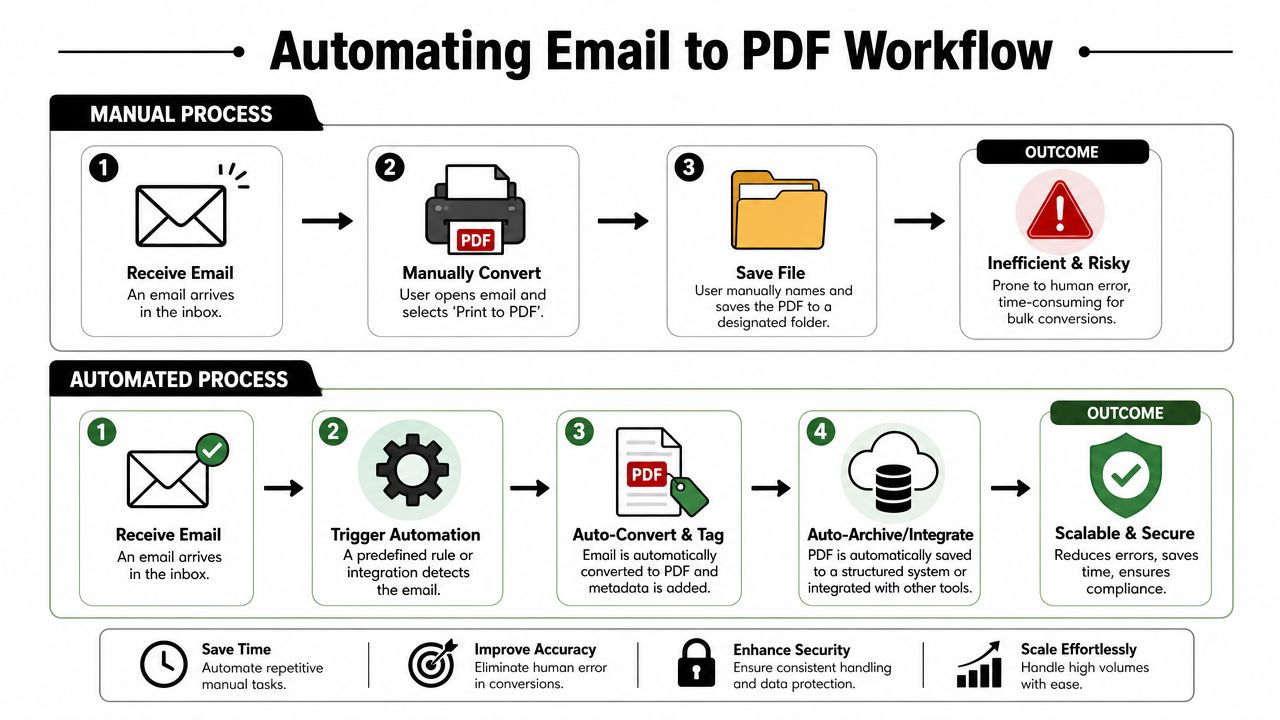
Modern tooling treats this as a workflow issue, not a print issue. That shift is visible in automation guides such as Nutrient's Power Automate example, which shows a structured process of creating a flow, defining an action, creating a file, and publishing the workflow so email bodies can be converted to PDF and archived automatically in cloud storage through an email-to-PDF automation process.
What an automated workflow looks like
A useful automation usually follows the same pattern:
- Detection: A rule identifies the emails that matter, such as invoice messages, approvals, or signed contracts.
- Conversion: The system creates a PDF version in a consistent format.
- Tagging: Metadata such as sender, date, project, or client is added to the file path or archive record.
- Archiving: The output is pushed into the right folder, document system, or case workspace.
If you're new to this category, a plain-language overview of Workflow Automation helps because it frames the objective correctly. You're not just converting files. You're designing a repeatable business action.
In practice, the best automated setups also answer questions manual workflows ignore:
- Should each email become its own PDF, or should a thread be grouped?
- Should attachments stay separate, or be bundled with the message record?
- Where should the archive live so the rest of the team can find it?
The right archive is the one people can trust and retrieve without opening five apps and guessing at filenames.
For teams building anything beyond ad hoc filing, it also helps to think in terms of repeatable email automation workflows for operational records, not isolated exports.
When automation is the right move
Automation becomes the sensible choice when any of these are true:
| Signal | What it means |
|---|---|
| Important emails arrive every day | Manual saving will drift or get skipped |
| Multiple people need the same records | You need standard naming and storage |
| Attachments matter | A body-only PDF isn't enough |
| Records feed another system | Export should connect to a process, not a desktop |
| You handle compliance-sensitive correspondence | Consistency matters as much as speed |
Bulk conversion tools have also moved this direction. Some support folder-based selection, filters, output choices, and packaging of multiple converted messages into ZIP archives. That's a clear sign that the market no longer sees email preservation as a one-message printing task. It's an operational pipeline.
Troubleshooting Common PDF Conversion Problems
Even when you pick the right method, small issues can ruin the output. These are the ones that come up most often.
The PDF cuts off part of the message
Symptom: The right side of the email disappears, or the footer spills onto strange extra pages.
Solution: Use print preview before saving. If you're printing from a browser, switch orientation, reduce scale, or try a different browser. If the layout still breaks, use the higher-fidelity route from earlier by saving the message as HTML first and converting from a word processor instead of printing directly.
The attachments aren't included
Symptom: The PDF shows attachment names, but not the actual files.
Solution: Save attachments separately. Then convert each one in its native application if you need PDFs of those files too. Store the message PDF and attachment files together in the same client, case, or project folder.
This is the point where many people realise they weren't trying to save an email. They were trying to create a complete record.
The thread is too long or messy
Symptom: Quoted replies are collapsed, repeated, or unreadable in the PDF.
Solution: Expand the entire thread before printing. If the conversation is still cluttered, save the key message and preserve the original email file separately. For long-running chains, it's often cleaner to archive each important decision email individually instead of forcing the whole thread into one massive PDF.
The PDF looks different from the email
Symptom: Fonts change, spacing shifts, banners move, or images render badly.
Solution: This usually happens in webmail because browser print engines interpret the layout differently. Try a desktop client if available. If not, use the HTML-to-word-processor-to-PDF route for more stable pagination and font handling.
A simple rule helps here:
- Readable copy needed now: Use print to PDF.
- Presentation quality matters: Use a staged conversion.
- Evidence or archival quality matters: Keep the original email file, handle attachments separately, and use a documented workflow.
If saving emails as PDFs is becoming a repeated task instead of a one-off fix, Zenfox.ai can help you turn that manual work into an automated process. You can connect your email, drive, CRM, and other tools, then build zero-code workflows that capture important messages, organise records consistently, and cut down the admin work that usually piles up around inbox-based documentation.